
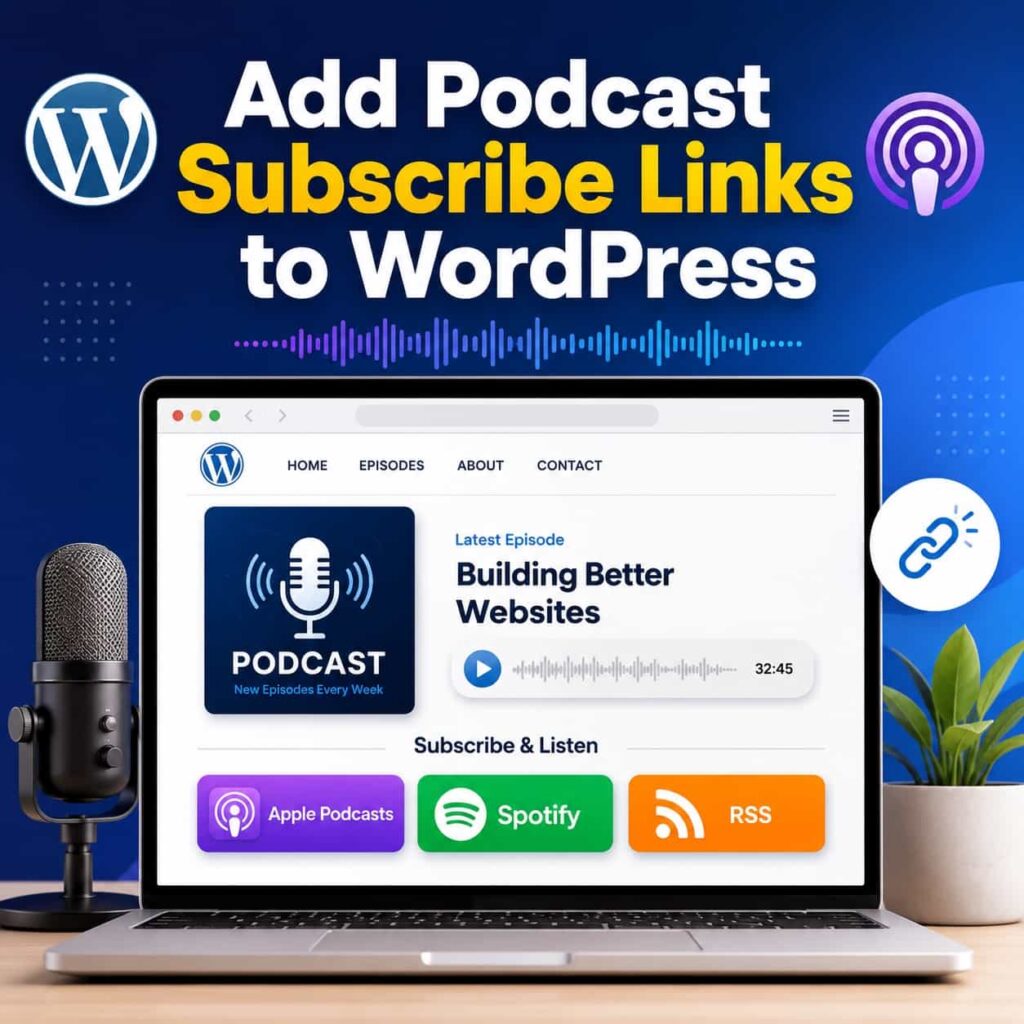
If someone lands on your podcast website and likes what they hear, you’ve got about five seconds to answer the question in their head:
“Cool. Where do I follow this?”
That’s what podcast subscribe links (or “listen on” links) are for.
In this post, I’ll show you a few solid ways to add podcast subscribe links (subscribe buttons) to WordPress (including the quick manual approach), plus a clean “set it once and forget it” option if your show is hosted on Transistor.fm.
What are podcast subscribe links?
They’re just links to your show on the platforms people actually use:
- Apple Podcasts
- Spotify
- Pocket Casts
- Podcast Addict
- Amazon Music
- YouTube (if you publish there)
- Your RSS feed
You can present these as:
- simple text links
- badges (“Listen on Apple Podcasts”)
- a grid of buttons/icons
The format matters less than the outcome: a visitor can pick their app and follow your show in one click.
Where should these links live on your site?
If you want the “default best answer,” do this:
- Put subscribe links on your Podcast page (obvious)
- Put them on your home page (surprisingly effective)
- Put them in your footer (low effort, always visible)
If you have a lot of episode traffic from Google, consider adding subscribe links to your episode pages (especially if you publish show notes posts in WordPress).
Option 1: Add subscribe links manually (fast, totally fine)
If you already have your Apple/Spotify/etc URLs handy, you can:
- Create a section on your Podcast page like “Follow the show” or “Listen in your favorite app.”
- Add a simple list of links (WordPress List block works great).
- Optionally add platform icons or badges.
This is the most “WordPress-y” approach, and it’s hard to mess up.
The downside is maintenance. If you add a new platform later, you have to remember to update your site too.
The other downside is presentation. A manual list of links can look a little rough unless you spend time styling it (icons, spacing, consistent button styles, and mobile layout).
Option 2: Use a subscribe-buttons plugin (recommended non-Transistor option)
If you are not using Transistor.fm (or you just want something simple and theme-friendly), a subscribe-buttons plugin can be a great middle ground:
- You add your Apple Podcasts / Spotify / RSS URLs once
- The plugin renders a nice set of buttons
- You can usually drop it anywhere with a block or shortcode
The one I would start with is Podcast Subscribe Buttons by Second Line Themes. It is a WordPress.org plugin and it includes a dedicated Podcast Subscribe Button block you can insert anywhere you use the Block Editor.
This is also a decent fit if you prefer not to connect your site to any external service and you do not mind maintaining the links yourself.
A quick reality check
No plugin can magically invent your Apple/Spotify links. You still need to have your show live in those directories first, and then paste the correct URLs into whatever tool you choose. (Transistor has a good walkthrough for this: Submit your show to all the popular directories.)
Option 3 (recommended for Transistor.fm + WordPress): Use TransistorWP’s Podcast Links block
If your show is hosted on Transistor.fm, TransistorWP can pull your distribution links directly into WordPress and display them as a neat grid of “Listen On” buttons.
This is the “don’t make me babysit it” option:
- You manage your distribution links in Transistor
- Your WordPress site displays them automatically
Step 1: Make sure your show is submitted to directories
In Transistor, directory submissions happen from your show’s Distribution area.
Two notes that matter:
- Most directories won’t accept a show until you have at least one published episode in your feed.
- After you submit, you don’t need to keep re-submitting; new episodes distribute automatically.
If you want the step-by-step, Transistor’s guide is here: Submit your show to all the popular directories.
Step 2: Add/confirm your distribution links in Transistor
Transistor can submit your show to major platforms (Spotify, Apple Podcasts, and many more), and it’s built around the idea that your RSS feed gets picked up by apps and directories.
If you want a quick overview, Transistor’s distribution page is here: Distribute your podcast everywhere.
Once your show is live in each directory, you’ll have URLs for your show on those platforms.
Step 3: Install TransistorWP and connect it to your Transistor account
From here, the workflow is:
- Install and activate TransistorWP
- Add your Transistor API key in the plugin settings
- Confirm TransistorWP can see your show(s)
(If you haven’t done this part yet, start with the TransistorWP “Getting Started” doc: Getting Started with TransistorWP.)
Step 4: Add the Podcast Links block in WordPress
On any page or post (your Podcast page is the obvious choice):
- Add the TransistorWP Podcast Links block
- Select the show
- Publish/update the page
TransistorWP will output a button for each distribution link that exists on your show.
A small detail I like: the RSS feed is shown as a “View Full” link, and the other platforms show as “Listen On” links.
If you want the full walkthrough and settings, see How to Use the Podcast Links Block.
What it looks like (and what it includes)
On the TransistorWP site’s own Podcast page, you can see the end result: a set of “Listen On …” links for multiple platforms, plus the full feed link.
You can see an example on the live site here: TransistorWP Podcast page.
Troubleshooting: why aren’t my subscribe links showing up?
A few common causes:
- No distribution links exist yet. If your show isn’t approved in Apple/Spotify/etc, you may not have URLs to display.
- Nothing is published. Many platforms require at least one published episode before they’ll accept/approve submissions. (Transistor calls this out in their submission guide.)
- Wrong show selected. If you run multiple shows, double-check the block’s selected show.
If you are still waiting on platform approvals, this is the guide to follow: Submit your show to all the popular directories.
If you’re stuck, the next stop is TransistorWP Troubleshooting and FAQ.
A simple recommendation
- Not on Transistor.fm: start with Podcast Subscribe Buttons.
- On Transistor.fm: use TransistorWP’s Podcast Links block so you set it up once and let your site reuse your distribution links.
If you want to get TransistorWP set up, start here: Getting Started with TransistorWP.