
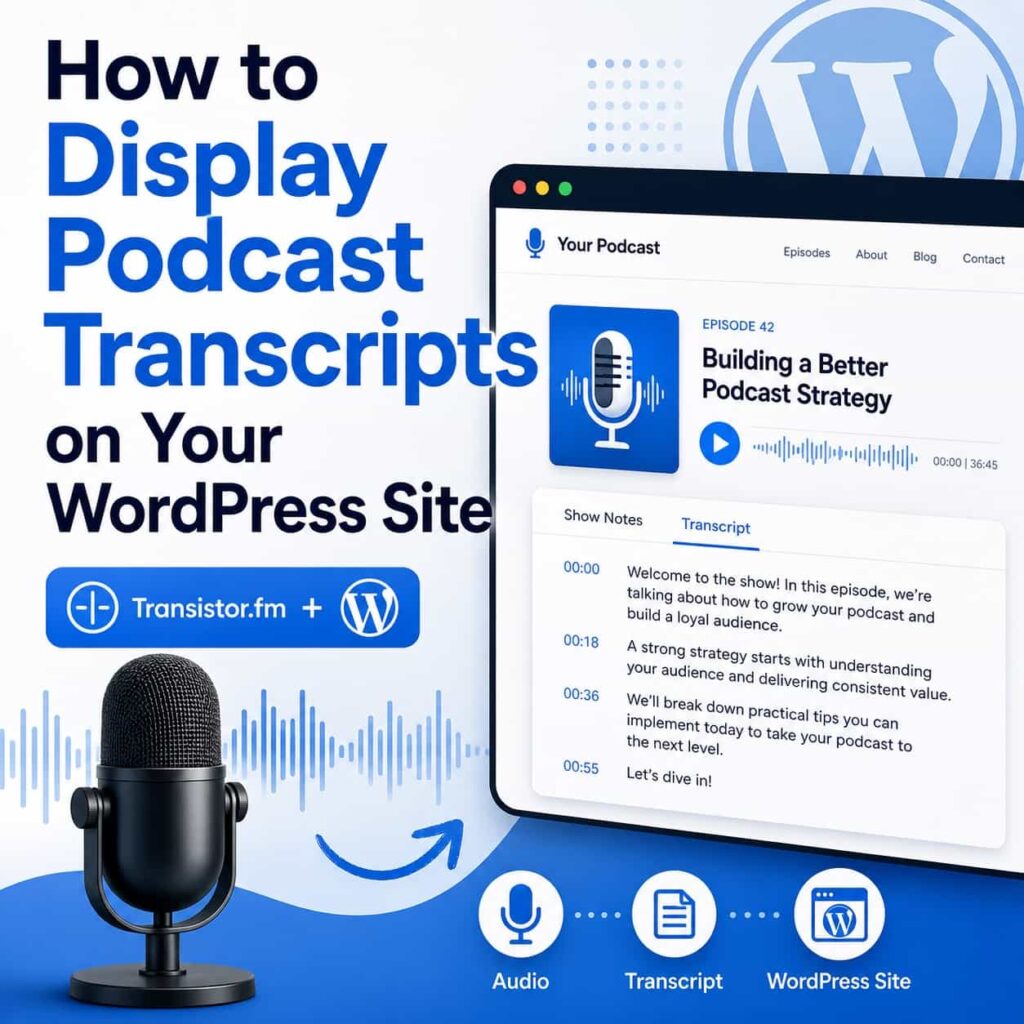
If you publish a podcast and you have a WordPress site, there is a good chance you have had this thought:
“I should probably put the transcript on my site.”
You are not wrong.
Transcripts are one of the simplest upgrades you can make for:
- accessibility (some people prefer, or need, text)
- search (Google can index text a lot more easily than audio)
- skimming (most visitors do not want to listen to 45 minutes to find one answer)
In this post, I will focus on the two manual transcript setups that work on any WordPress site, then I will show the easiest workflow if your show is hosted on Transistor.fm.
First: where should transcripts live?
You basically have two good patterns:
- On the episode page (recommended). Keep the player, description, and transcript together.
- On a separate transcript page. Link to it right under the player.
If you already publish episode show notes posts in WordPress, putting the transcript right on that same page is usually the cleanest option.
(A nice practical tip from Washington University’s accessibility guidance is to place a transcript link near the audio player, ideally immediately after it. That makes it easier for humans and screen readers to find. See: Accessible Podcasts.)
Option 1 (recommended): put the transcript on the episode page
This is the straightforward approach:
- Create or edit your episode post/page in WordPress.
- Paste the transcript content into the editor (below the player).
- Use headings, short paragraphs, and speaker labels so it is not a massive wall of text.
This is usually the best default because:
- Visitors do not have to bounce between pages
- Google can index the episode content and the transcript together
- It is obvious where to find the transcript
The downside is also obvious. Long transcripts can make a page feel endless if you do not format it well.
Make the transcript readable (three small things)
- Add a short “Transcript” heading so people can jump to it.
- Break up paragraphs (every 2 to 5 sentences is a good rule of thumb).
- Use speaker labels if it is an interview or co-host show.
If you want to get fancy, you can also add a simple table of contents at the top of the page (or at least add a jump link to the transcript section).
Option 2: use a separate transcript page per episode
This is a good fit if you want your episode page to stay short and scannable.
The flow looks like this:
- Your episode page has the player, description, and a short “Transcript” section with a link.
- Your transcript page is just the transcript (and maybe a link back to the episode).
This also makes it easier to reuse the transcript elsewhere (for example: a “Resources mentioned” page, a newsletter, or a knowledge base post), without cramming everything onto the episode page.
Where to add the transcript link
Put the link immediately after the player (or right under the episode description). That matches common accessibility guidance and makes it easy to find. See: Accessible Podcasts.
For Transistor.fm + WordPress: use TransistorWP to pull the transcript in
If your podcast is hosted on Transistor.fm and your site is on WordPress, TransistorWP can display the episode transcript right under your embedded player.
The key thing to know is this:
- TransistorWP does not create the transcript. It displays a transcript that already exists for that episode in Transistor.
So your workflow looks like:
- Add or generate the transcript in Transistor.
- Embed the episode in WordPress using the TransistorWP Single Episode Embed block.
- Toggle on Display Transcript.
Step 1: add a transcript in Transistor.fm
In your Transistor dashboard, open the episode and add a transcript.
Transistor has a help doc for this here: How to add transcripts to your podcast episodes.
If you are using Transistor’s AI transcription, this is worth reading too: How AI Transcription works.
Step 2: install TransistorWP and connect your account
If you are brand new to TransistorWP, start here: Getting Started with TransistorWP.
Once TransistorWP is installed and connected (license + API key), you are ready.
Step 3: add a Single Episode Embed block
In WordPress, open the post or page where you want your episode and transcript.
- Add the TransistorWP Single Episode Embed block.
- Select your show.
- Select the episode.
If you want a walkthrough of the block settings, the doc is here: How to Use the Single Episode Embed Block.
Step 4: toggle on “Display Transcript”
In the block settings, turn on Display Transcript.
On the front end, TransistorWP shows the transcript in a collapsible section labeled “View Full Transcript”, which keeps the page from feeling ridiculously long.
Step 5: publish and test the page
Update the page, then view it on the front end.
Click “View Full Transcript” and confirm the transcript content is there.
Common issues (and quick fixes)
“I turned it on, but no transcript shows up”
Usually it is one of these:
- That episode does not have a transcript in Transistor yet. Add it, then refresh your WordPress page.
- You embedded the wrong episode. Double-check the selected episode in the block.
- Caching is involved. If you are using a cache plugin or a host-level cache, purge it and refresh.
If you are stuck, this is the fastest next stop: TransistorWP Troubleshooting and FAQ.
Should I put the transcript on every episode?
If you can, yes.
But if you are trying to be practical (and you should be), start here:
- Your top 10 episodes
- Your most evergreen episodes (the ones new listeners find via search)
- Any episode where you teach something tactical
A simple recommendation
- If you want the best “works everywhere” setup: put the transcript on the episode page.
- If you want your episode page to stay short: use a separate transcript page per episode and link to it under the player.
- If your show is on Transistor.fm and you want the cleanest workflow inside the Block Editor: use TransistorWP’s Single Episode Embed block and turn on Display Transcript.
If you want to see what else TransistorWP can do (latest episode embeds, multi-episode playlists, subscribe buttons), start on the home page: TransistorWP.